Adding an application
In this guide we will show you how to use Identity to create an application.
Want to learn more about applications?
Head over to our documentation on applications to find out more.
Write access needed
To add an application, you need to have write access to Identity. Read our guide on managing user access to learn more.
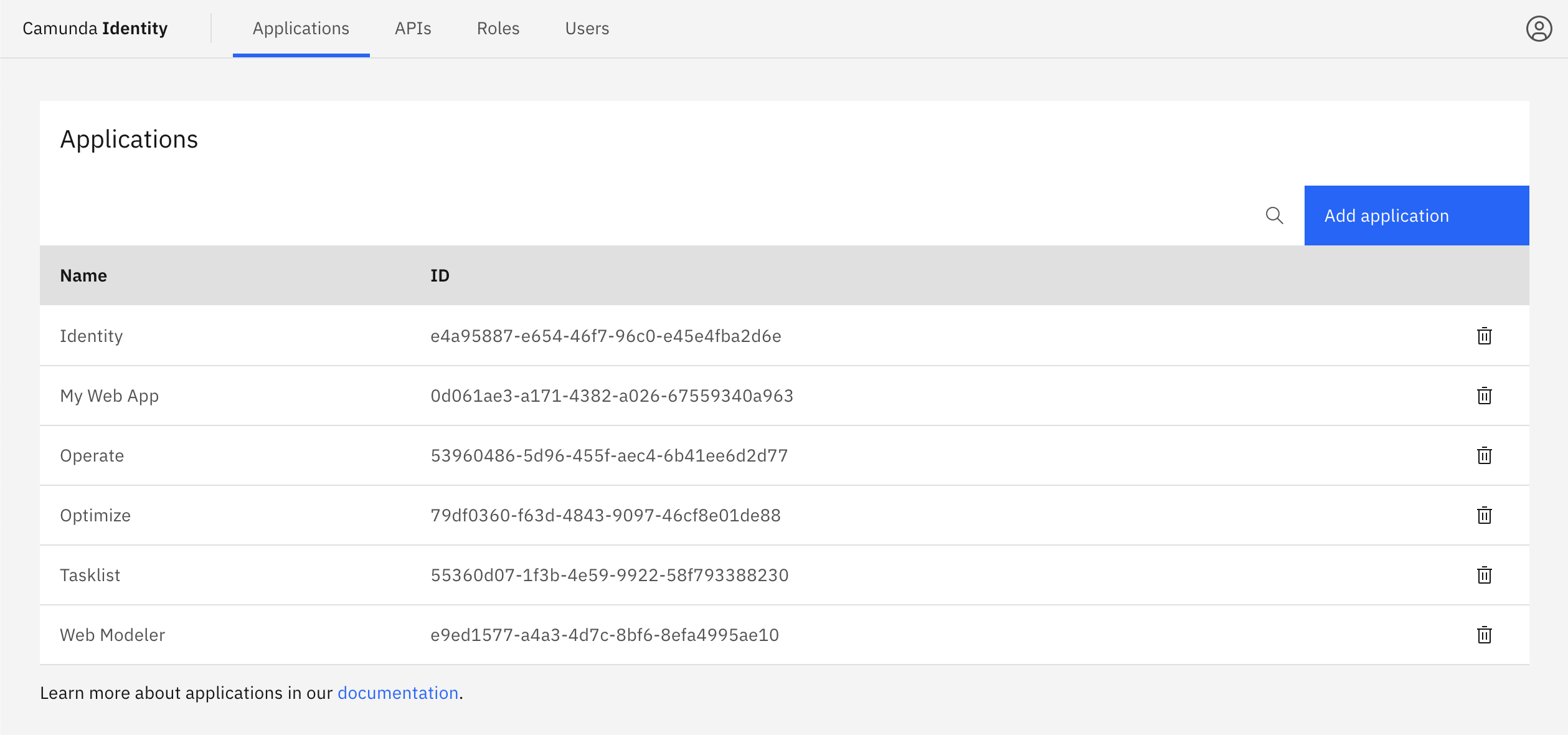
- Log in to the Identity UI and navigate to the Applications tab:
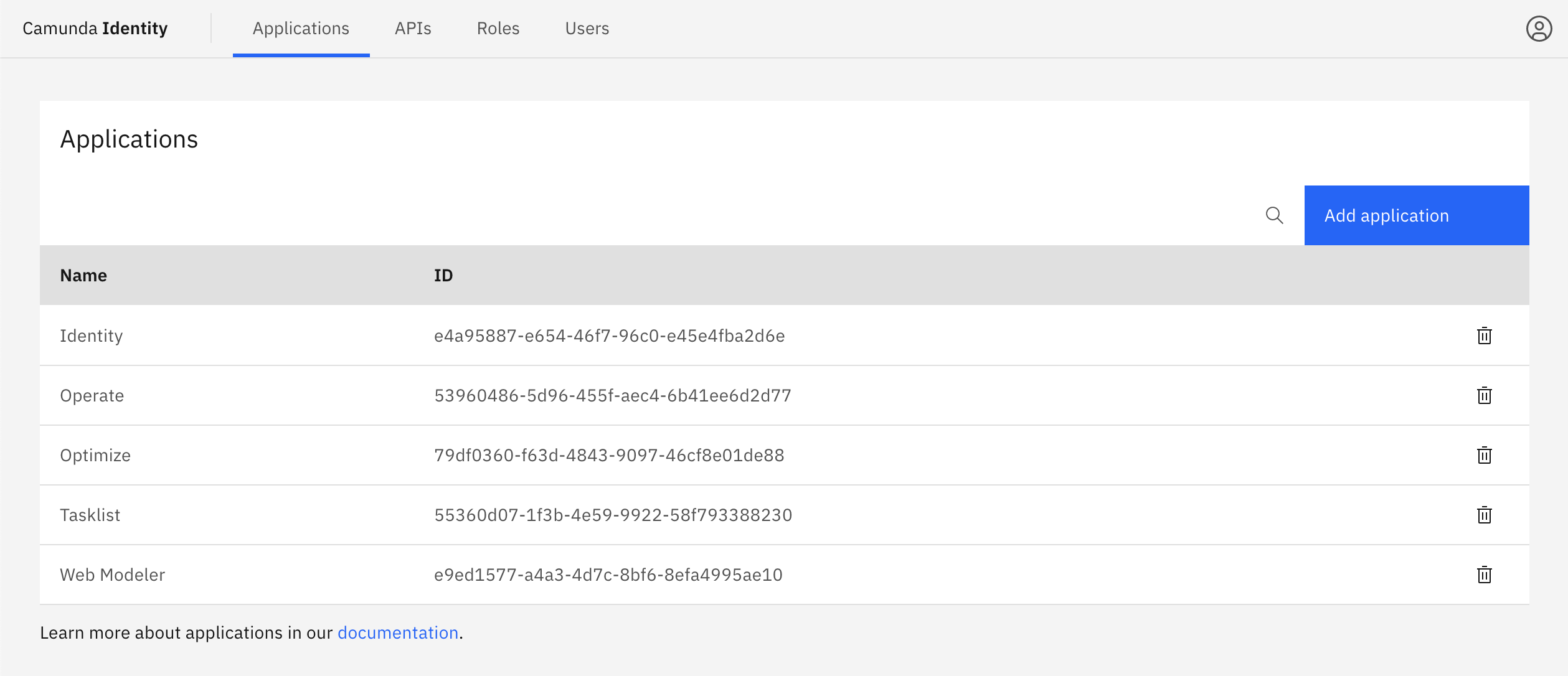
- Click the Add application button located on the top right of the table and a modal will open:
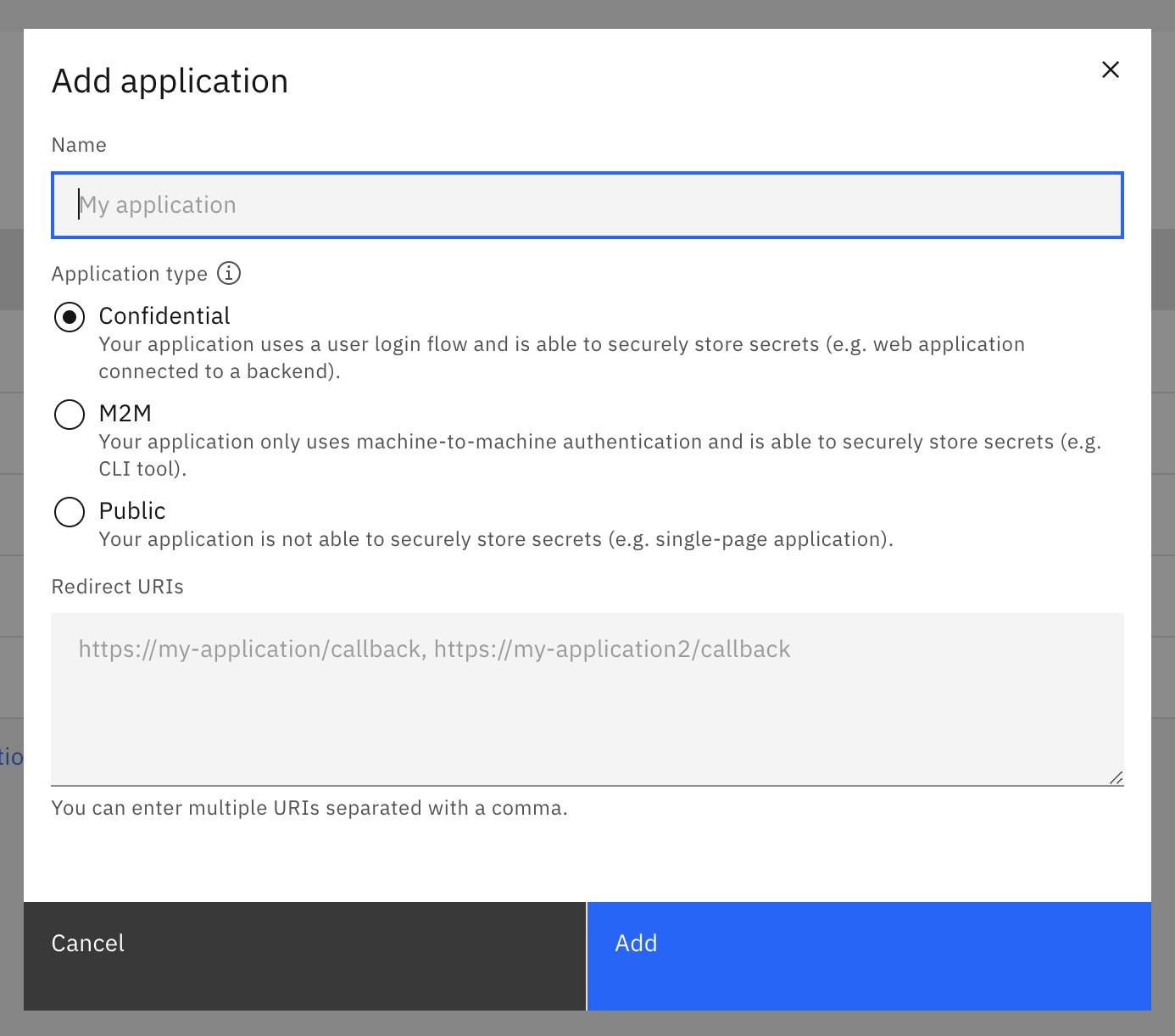
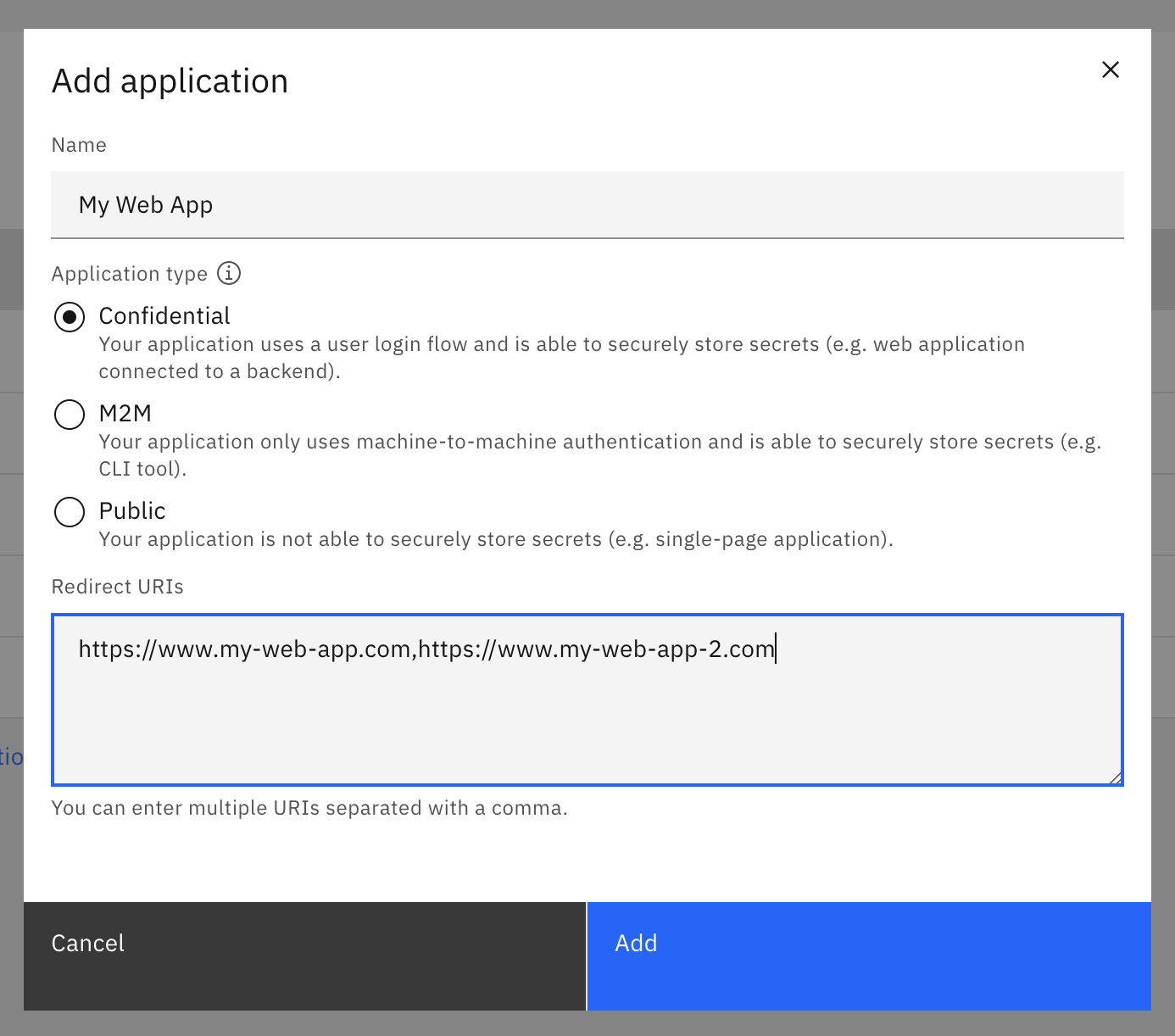
- Fill in a name for your application. For this guide we will use a set of example values. Select the type of your application based on our guide. Depending on the selected type, you might need to enter at least one redirect URI. When you have inserted the required details, click Add:
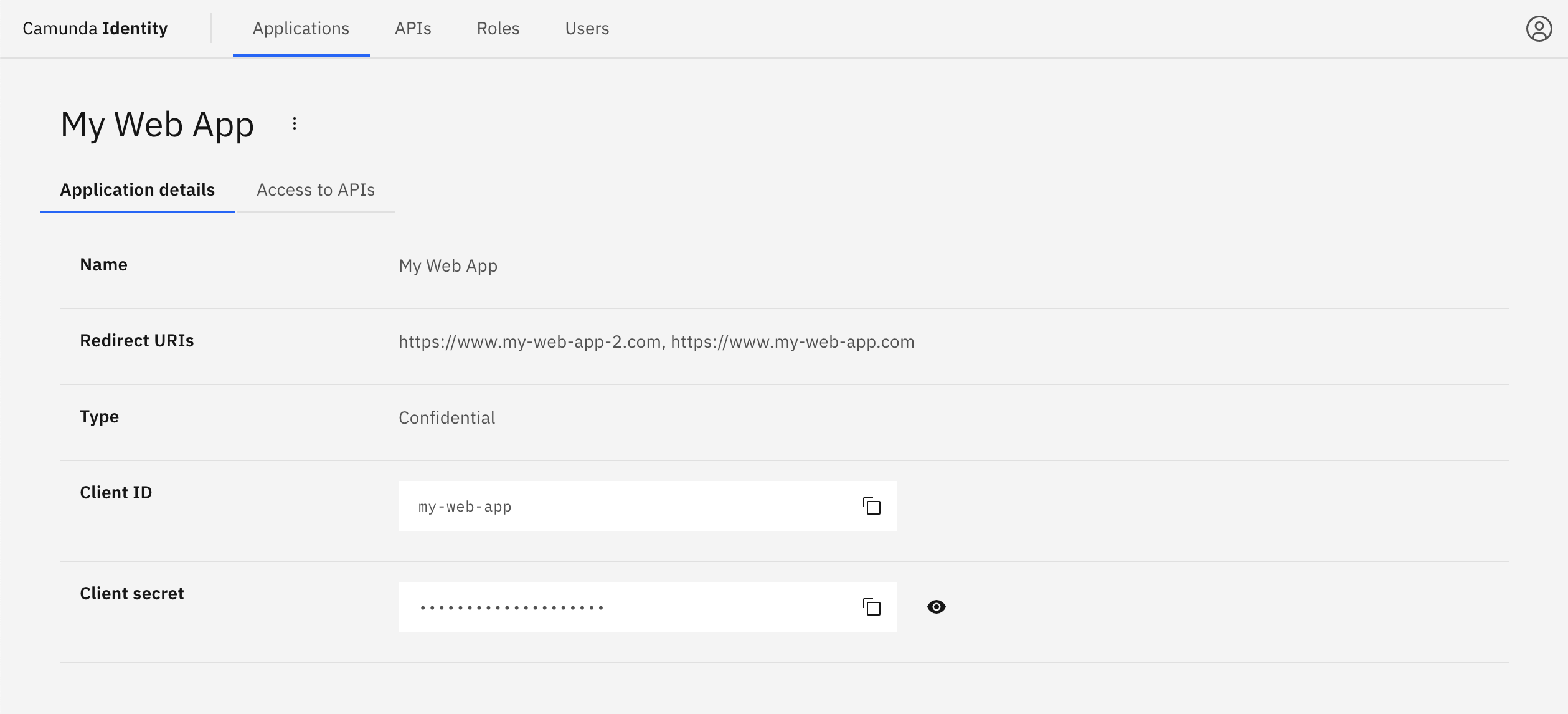
On confirmation, the modal will close, the list will update, and your new application will be shown:
You are now able to click on your new application to view the details. This includes your generated client ID and client secret depending on the selected type: